

Download Hasleo Disk Clone – Free Disk Cloning Tool for Windows (SSD Migration, System Clone, Partition Copy)
Looking for a reliable, free, and secure way to clone your Windows disk or migrate your OS to a new SSD? Hasleo Disk Clone is a powerful yet lightweight utility designed to help you transfer your entire system—complete with installed apps, settings, and files—from one disk to another without reinstalling Windows or losing any data. Whether you're upgrading from an HDD to an SSD, replacing a failing drive, or creating a full backup before a major system update, this tool delivers professional-grade performance at no cost.
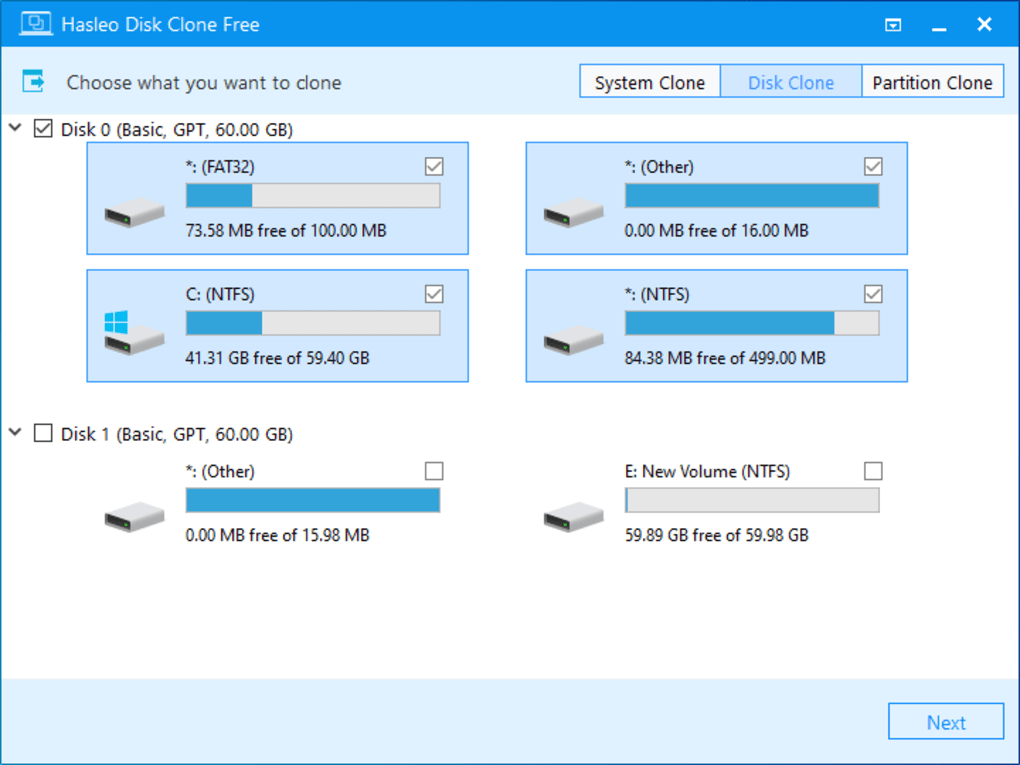
With support for both MBR and GPT disk types, and compatibility with Windows 7 through Windows 10, Hasleo Disk Clone ensures a smooth transition across various hardware setups. The software supports three cloning modes: System Clone, Disk Clone, and Partition Clone, giving users full control over their migration process. Its intuitive interface and step-by-step user guide make it accessible even for beginners, while advanced users appreciate the granular control over partition sizing and layout.
Best of all, it's completely free to download and use, making it a top alternative to paid solutions like Acronis Disk Director and EaseUS Partition Master. Secure, fast, and efficient, Hasleo Disk Clone is the go-to software for anyone needing a hassle-free disk migration experience.
Key Features of Hasleo Disk Clone
Hasleo Disk Clone stands out in the crowded field of disk cloning tools thanks to its comprehensive feature set and user-friendly design. One of its most powerful features is System Clone, which automatically detects your current boot drive and clones it—including the operating system, installed applications, personal files, and system settings—onto a new disk. This eliminates the need to reinstall Windows and manually set up every program, saving hours of setup time.
The Disk Clone function allows you to copy an entire physical disk to another, preserving the exact layout and structure. This is ideal for full drive replacements or creating exact backups of critical systems. For users who want more control, the Partition Clone feature enables selective copying of individual partitions, perfect for migrating only your OS partition or a specific data drive.
Another standout feature is partition resizing. During the cloning process, you can adjust the size and location of partitions on the destination disk to fit your new storage needs. This is especially useful when cloning a large disk to a smaller SSD—Hasleo Disk Clone intelligently optimizes partition usage to ensure maximum compatibility and space efficiency. The tool also supports both MBR and GPT partition styles, making it compatible with older and newer systems alike. Whether you're using a legacy BIOS system or a modern UEFI-based machine, Hasleo Disk Clone handles the transition seamlessly.
For added peace of mind, the software includes a pre-cloning warning system that clearly informs users that all data on the destination drive will be erased. This prevents accidental data loss and encourages careful planning. The included user guide with detailed screenshots walks you through each step, explaining technical terms like boot sectors, active partitions, and disk alignment.
Additionally, the tool runs in the background with minimal system resource usage, so your computer remains responsive during the cloning process. With multi-language support (English, German, French, Italian, and more), Hasleo Disk Clone is truly accessible to a global audience. All these features combine to make it one of the most reliable free disk cloning tools available today.
How to Install and Use Hasleo Disk Clone (Step-by-Step Guide)
Getting started with Hasleo Disk Clone is straightforward, even for users with limited technical experience. Begin by downloading the software from the official Hasleo website. The installer is lightweight and runs without requiring admin rights in most cases, though elevation may be needed for disk-level operations. Once downloaded, run the installer and follow the on-screen prompts. The installation process takes less than a minute and doesn’t clutter your system with unnecessary bloatware.
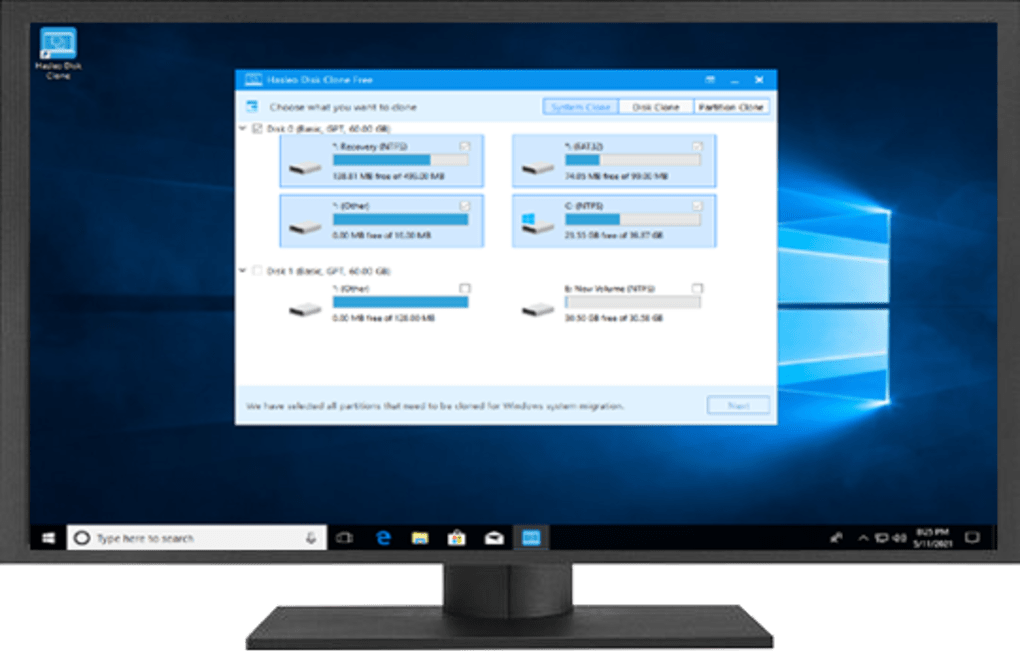
After installation, launch the application. You’ll be greeted with a clean, intuitive interface that presents three main cloning options: System Clone, Disk Clone, and Partition Clone. If you're upgrading your hard drive to an SSD, select System Clone—the software will automatically detect your current system disk. For other scenarios, choose Disk Clone or Partition Clone, then manually select the source and destination drives.
Next, you’ll be prompted to review the destination disk. Important: Ensure the target drive is empty or that you’ve backed up any existing data, as the cloning process will erase everything on it. Then, you can adjust partition sizes and layouts to fit your new disk. This is where the tool shines—its intelligent resizing feature ensures optimal space usage, especially when moving from a large HDD to a smaller SSD.
Once you’re satisfied with the settings, click Next. A final warning will appear—confirm that you’re ready to proceed. The cloning process will begin, and a progress bar will show real-time updates.
Depending on the amount of data and drive speed, this may take anywhere from 15 minutes to over an hour. During this time, you can continue using your computer, though it’s recommended to avoid heavy disk operations. Once complete, restart your computer and enter the BIOS/UEFI to change the boot order so your new drive boots first.
After that, your system will load exactly as it did before—same apps, same settings, same performance.
Compatibility & System Requirements
Hasleo Disk Clone is designed to work seamlessly across a wide range of Windows systems, making it a versatile choice for both home users and IT professionals. It is fully compatible with Windows 10, Windows 8.1, Windows 8, Windows 7, and Windows Vista, ensuring that even older machines can benefit from modern disk cloning technology. Whether you're running a legacy desktop or a newer laptop, this tool adapts to your environment without issues.
The software supports both MBR (Master Boot Record) and GPT (GUID Partition Table) disk types, which is crucial for modern UEFI systems. This dual compatibility means you can clone a system from an older BIOS-based setup to a newer UEFI machine—or vice versa—without encountering boot errors. It also works with both internal and external drives, allowing you to clone your system to an external SSD or USB enclosure for backup or portability.
Hardware-wise, Hasleo Disk Clone has minimal system requirements. It runs efficiently on machines with as little as 1 GB of RAM and a 1 GHz processor, making it suitable for older systems. The tool uses low CPU and memory resources during cloning, so it won’t slow down your computer during the process. It supports all major storage types, including SATA, NVMe, SSDs, HDDs, and USB flash drives. No additional drivers are required, and the software integrates smoothly with Windows’ native disk management tools.
For users on the go, while Hasleo Disk Clone is currently only available for Windows, its functionality makes it an excellent choice for anyone needing to perform a secure disk migration. The ability to clone partitions and entire disks without data loss, combined with free access and no hidden fees, makes it a standout option in the Windows ecosystem.
Pros and Cons of Hasleo Disk Clone
- Pros:
- Completely free to download and use—no trial limitations or paid upgrades
- Supports System, Disk, and Partition cloning with flexible options
- Compatible with MBR and GPT disks, and all major Windows versions
- Intuitive interface with detailed step-by-step guide and screenshots
- Allows partition resizing and layout customization on destination disk
- Minimal system resource usage during cloning process
- Multi-language support (English, German, French, Italian, etc.)
- Secure cloning with clear warnings to prevent data loss
- Cons:
- Limited to Windows operating systems (no Mac, Android, or iOS version)
- No built-in bootable rescue disk creation (users must create one manually)
- Interface is functional but not as modern or polished as some paid alternatives
- Advanced features like sector-by-sector cloning are not available
- Documentation is helpful but could include more video tutorials
Frequently Asked Questions (FAQ)
Can I clone my Windows OS to a smaller SSD using Hasleo Disk Clone?
Yes, you can clone your Windows system to a smaller SSD. Hasleo Disk Clone automatically adjusts partition sizes during the cloning process to fit within the available space on the destination drive. However, ensure the SSD is large enough to hold your system and essential data.
Does Hasleo Disk Clone work with UEFI and GPT systems?
Yes, Hasleo Disk Clone fully supports both UEFI and GPT-based systems, making it suitable for modern computers with secure boot enabled.
Is the software safe to use? Will I lose my data?
Yes, the software is safe when used correctly. It includes a warning before overwriting the destination drive. Always back up important data before cloning, and double-check that you’ve selected the correct source and destination disks.
Can I clone a partition to a different drive?
Yes, the Partition Clone feature allows you to copy individual partitions to another disk or location, ideal for migrating specific data or system partitions.
Do I need to create a bootable USB to use Hasleo Disk Clone?
No, the software runs directly within Windows. However, if you're cloning a system drive and need to boot from the new drive, you may need to adjust the boot order in BIOS/UEFI after cloning.
Final Verdict: Why You Should Download Hasleo Disk Clone Today
If you're looking for a free, secure, and reliable disk cloning tool that can migrate your Windows OS, apps, and data to a new drive without reinstalling everything, Hasleo Disk Clone is one of the best options available. Its ability to clone entire systems, individual partitions, or full disks—with support for both MBR and GPT—makes it a versatile tool for upgrades, backups, and migrations. The step-by-step guide and clear warnings ensure a safe experience, even for beginners. While it lacks some advanced features found in paid tools, its core functionality is rock-solid and delivered at zero cost.
Whether you're upgrading from an HDD to an SSD, replacing a failing drive, or preparing for a system update, Hasleo Disk Clone saves time, effort, and potential data loss. With support for multiple languages and compatibility with all major Windows versions, it’s accessible to users worldwide. Don’t waste money on expensive software when you can get professional results for free.
Download Hasleo Disk Clone now and take full control of your disk migration with confidence.







